

Documentation
LearnMentor AI Documentation
Everything needed to set up the LearnDash AI mentor and keep it running: installing, connecting a provider, choosing which courses it may read, goals, reminders, the Insights screen, shortcodes, privacy tools and the developer hooks. Back to the LearnMentor AI overview.
Requirements
- WordPress 6.2 or newer, PHP 7.4 or newer
- One of LearnDash, Tutor LMS, LifterLMS or MemberPress Courses, with at least one published course
- An API key from an AI provider, or a local model endpoint
- For reminders: a working outbound mail setup. An SMTP plugin is strongly recommended
Installing
Upload the plugin zip under Plugins → Add New → Upload and activate it. On activation it creates its own database tables and detects which LMS you are running. If you have more than one LMS active, it picks the one with the most published courses and tells you which it chose — you can change that on the Course content tab.
Pro is a separate add-on plugin. Install it the same way, then paste your licence key on the LearnMentor AI → Licence screen. The free plugin reads the licence itself, so features unlock the moment the key validates.
Pro is a separate add-on plugin. Install it the same way, then paste your licence key on the LearnMentor AI → Licence screen. The free plugin reads the licence itself, so features unlock the moment the key validates.
Connecting an AI provider
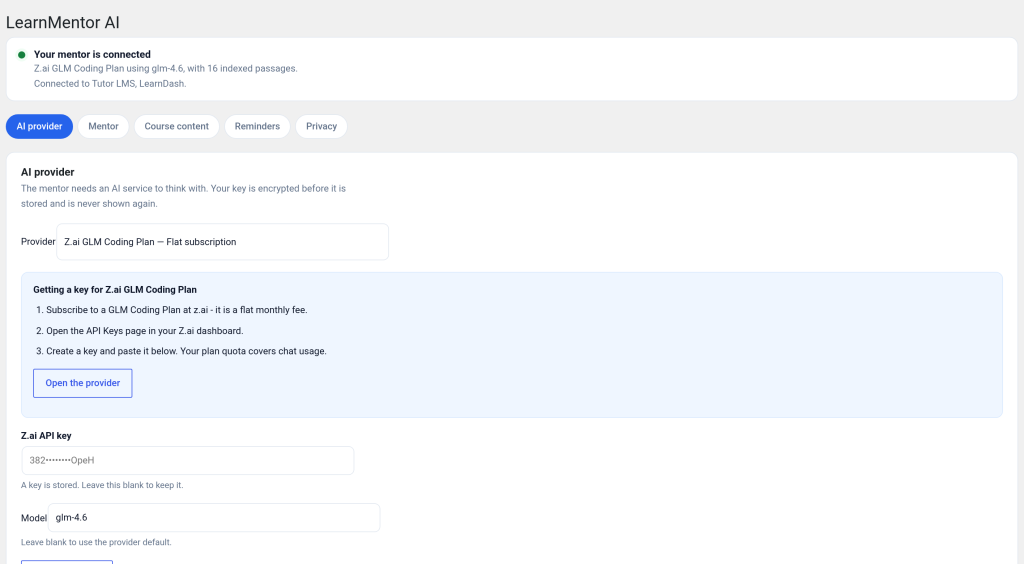
LearnMentor AI → Settings → AI provider. Pick a provider, paste your key and press Test. The key is encrypted with AES-256-GCM before it is written to the database, and the settings screen only ever shows a masked version afterwards.
Model lists are read live from the provider you choose, so the dropdown does not go stale when they ship something new. You pay the provider directly at their rates; there are no per-message fees from us.
If you would rather nothing left your server, choose the OpenAI-compatible option and point the base URL at Ollama or LM Studio running locally. Everything else behaves identically.
Model lists are read live from the provider you choose, so the dropdown does not go stale when they ship something new. You pay the provider directly at their rates; there are no per-message fees from us.
If you would rather nothing left your server, choose the OpenAI-compatible option and point the base URL at Ollama or LM Studio running locally. Everything else behaves identically.
Choosing what the mentor may read
Settings → Course content. Tick the courses to index. Indexing runs in the background and builds a searchable copy of lesson and topic text in the plugin’s own table — your LMS content is never modified.
Two things worth understanding. First, retrieval is scoped to what each learner can access, checked on every question rather than cached at login, so nobody can ask their way into a course they have not bought. Second, if the mentor finds nothing relevant it says so rather than answering from general knowledge; an honest “that is not in your course material” is worth more than a confident invention.
Re-index after bulk content changes with the button on the same screen. Individual lesson edits are picked up automatically.
Two things worth understanding. First, retrieval is scoped to what each learner can access, checked on every question rather than cached at login, so nobody can ask their way into a course they have not bought. Second, if the mentor finds nothing relevant it says so rather than answering from general knowledge; an honest “that is not in your course material” is worth more than a confident invention.
Re-index after bulk content changes with the button on the same screen. Individual lesson edits are picked up automatically.
Goals and milestones
The mentor asks each learner what they want to be able to do by the end and roughly by when. It turns that answer into a structured goal, but the learner confirms before anything is saved — the mentor proposes, the learner commits.
From the target date it lays milestones across the days the learner said they study, skipping the days they did not. Falling behind re-plans the schedule rather than marking the goal failed. Going back to an earlier lesson is treated as normal learning, not a regression.
Free allows one active goal per learner. Pro removes the cap and adds milestone reminders and the calendar.
Pace is measured from actual recent activity, not lifetime completions divided by goal age. A learner who finished ten lessons in week one and nothing since reads as behind, which is the truth.
From the target date it lays milestones across the days the learner said they study, skipping the days they did not. Falling behind re-plans the schedule rather than marking the goal failed. Going back to an earlier lesson is treated as normal learning, not a regression.
Free allows one active goal per learner. Pro removes the cap and adds milestone reminders and the calendar.
Pace is measured from actual recent activity, not lifetime completions divided by goal age. A learner who finished ten lessons in week one and nothing since reads as behind, which is the truth.
Reminders, and how they are kept polite
Settings → Reminders. Free sends two types: dormant, when a learner has not appeared for the number of days you set, and session due, when a study slot they scheduled is about to start. Pro adds streak at risk, goal at risk, milestone due and missed, quiz struggle, stuck on a lesson, goal reached and goal missed.
Every send passes the same governor, and all of it is in the free version:
Every send passes the same governor, and all of it is in the free version:
- A weekly cap per learner, which also sets the minimum gap between messages
- Quiet hours in the learner's own timezone, so nothing arrives at 3am
- One-click unsubscribe with the List-Unsubscribe headers mailbox providers expect
- A hard stop after a set number of ignored nudges
- Dormancy always outranks the cheerful 'today in your course' message
The message body is written by the model against that learner’s goal and last lesson, then dropped into a fixed translatable shell. If the provider is down, a static template goes out anyway — a reminder must never depend on an API being up. Reminders run on Action Scheduler, so a missed cron window is retried rather than skipped.

The Insights screen
Pro only, under LearnMentor AI → Insights, with 7, 30 and 90 day windows. It is the practical way to review student progress in LearnDash without exporting anything: questions your material did not answer, the lessons generating the most questions, learners who have gone quiet with days since and last reminder, whether reminders brought anyone back, where in the course people stop, and goals set against goals reached.
The unanswered-questions list is the most useful thing on the screen. Each entry is a lesson somebody wanted and nobody has written.
The unanswered-questions list is the most useful thing on the screen. Each entry is a lesson somebody wanted and nobody has written.
Shortcodes and placement
By default a floating launcher appears on course and lesson pages for logged-in, enrolled learners. To place it yourself:
The mentor never renders for logged-out visitors. It is built for people you already know, which is what lets it be personal without guessing.
[learnmentor] — renders the mentor panel inline wherever you put it.[learnmentor course_id="123"] — pins it to one course regardless of the page.[lmai_calendar] — the study calendar for the logged-in learner. Pro only.The mentor never renders for logged-out visitors. It is built for people you already know, which is what lets it be personal without guessing.
Privacy, export and erase
The plugin registers with WordPress’s own privacy exporters and erasers, so Tools → Export Personal Data and Erase Personal Data cover every LearnMentor table without any extra step.
On the Privacy tab you can set retention per table, turn memory off entirely for the whole site (useful for academies teaching under-16s), and generate subprocessor wording naming your configured AI provider, ready to paste into your privacy policy.
Deleting the plugin drops its tables, settings and encrypted key. Deactivating leaves the data alone and only cancels the queued reminders.
On the Privacy tab you can set retention per table, turn memory off entirely for the whole site (useful for academies teaching under-16s), and generate subprocessor wording naming your configured AI provider, ready to paste into your privacy policy.
Deleting the plugin drops its tables, settings and encrypted key. Deactivating leaves the data alone and only cancels the queued reminders.
Developer reference
Every LMS event is normalised into one action, so your code never has to care which platform fired it:
Useful filters:
REST routes live under
do_action( 'lmai_progress', $event ) — types are enrolled, step_started, step_completed, course_completed, quiz_passed, quiz_failed and unenrolled.Useful filters:
lmai_system_prompt — the assembled prompt, with the learner profile and retrieved passages.lmai_lms_adapters — register an adapter for Sensei, LearnPress or anything else.lmai_minimum_nudge_gap — override the spacing between reminders.lmai_is_pro — may only ever narrow what is enabled, never widen it.REST routes live under
learnmentor-ai/v1 and every one of them requires a logged-in learner. The adapter interface is public: implement fourteen methods, pass the conformance suite, and the rest of the plugin works unchanged. When something is not working
The mentor says it cannot find anything. Check the course is ticked on the Course content tab and that indexing finished. If the learner is not enrolled, an empty answer is correct behaviour.
No reminders are going out. Reminders need WP-Cron running and Action Scheduler processing its queue. Check Tools → Scheduled Actions for the
Replies stop mid-sentence. Raise the reply-length limit on the AI provider tab. Reasoning models spend that budget thinking before they write, so a small cap on one of those returns very little text.
Pro features are still locked. Re-check the key on the Licence screen. Three consecutive failed validations lock only the licence screen, never the mentor itself.
Still stuck? Book a call and we will look at it with you.
No reminders are going out. Reminders need WP-Cron running and Action Scheduler processing its queue. Check Tools → Scheduled Actions for the
lmai_daily_sweep hook. If mail is queued but never arrives, that is almost always the host’s wp_mail() rather than the plugin — install an SMTP plugin.Replies stop mid-sentence. Raise the reply-length limit on the AI provider tab. Reasoning models spend that budget thinking before they write, so a small cap on one of those returns very little text.
Pro features are still locked. Re-check the key on the Licence screen. Three consecutive failed validations lock only the licence screen, never the mentor itself.
Still stuck? Book a call and we will look at it with you.